Emulation Ninja
Emulation Ninja

What's New

Install, Configure, and Manage Emulators in One Place

Getting an emulator setup working usually means bouncing between download pages, BIOS folders, config files, and half a dozen separate tools. Emulation Ninja brings that workflow into one place so installing, configuring, and maintaining your library is much easier.

Install emulators or connect the ones you already use

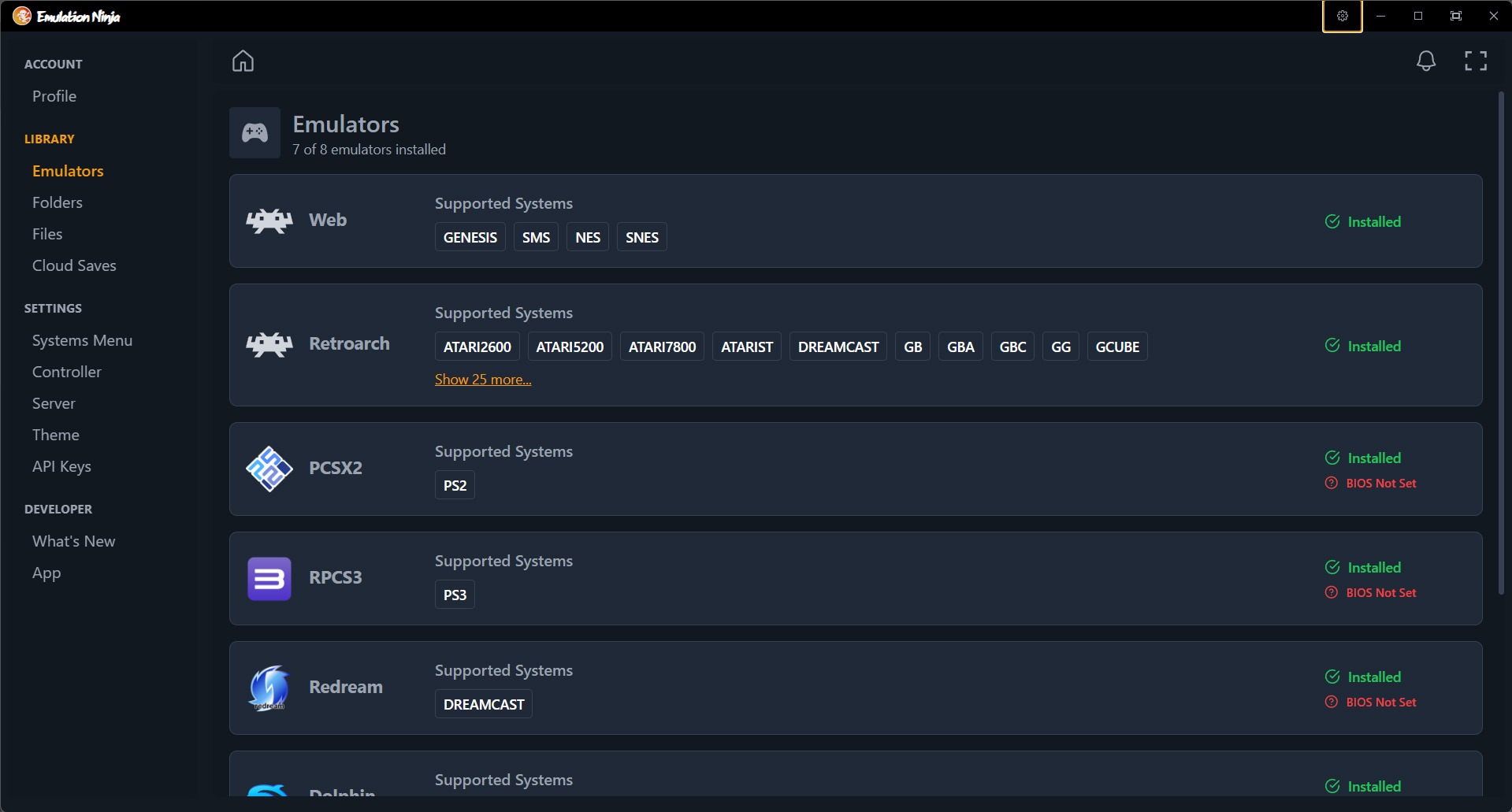
The emulators screen shows what is installed, which systems each emulator supports, and what still needs attention. If you already have an emulator on your machine, you do not need to start from scratch either.

You can point Emulation Ninja at an existing installation, register it with the app, and keep managing it from the same interface. That makes it easy to bring current setups into Emulation Ninja without rebuilding everything manually.

Configure emulators without hunting for files

Emulation Ninja exposes the important paths for each emulator directly in the interface, including installation folders, BIOS locations, and config/data paths.

For more advanced setups, you can open complex config files right inside the app, switch between raw and parsed views, and save changes directly from the interface.

That is especially useful for emulators like RetroArch, where configuration normally lives in large text files that are easy to misplace or edit incorrectly.

BIOS checks are built in

BIOS setup is one of the most common reasons an emulator works on one system and fails on another. Emulation Ninja helps by automatically surfacing BIOS status, so you can quickly see which emulators are ready and which ones still need required files.

On the emulator list, that means you can catch missing BIOS requirements before launch instead of troubleshooting them later.

First-class RetroArch support

RetroArch is powerful, but managing installs, paths, BIOS requirements, and cores can get messy fast. Emulation Ninja gives RetroArch a dedicated workflow instead of treating it like just another executable.

You can browse cores, search through them, see what is installed, and mark primary cores so the best default option is always selected for the systems you care about most.

Choose primary emulators and keep folders organized

When multiple emulators can run the same platform, Emulation Ninja lets you choose a primary emulator or core so launches follow the setup you want by default.

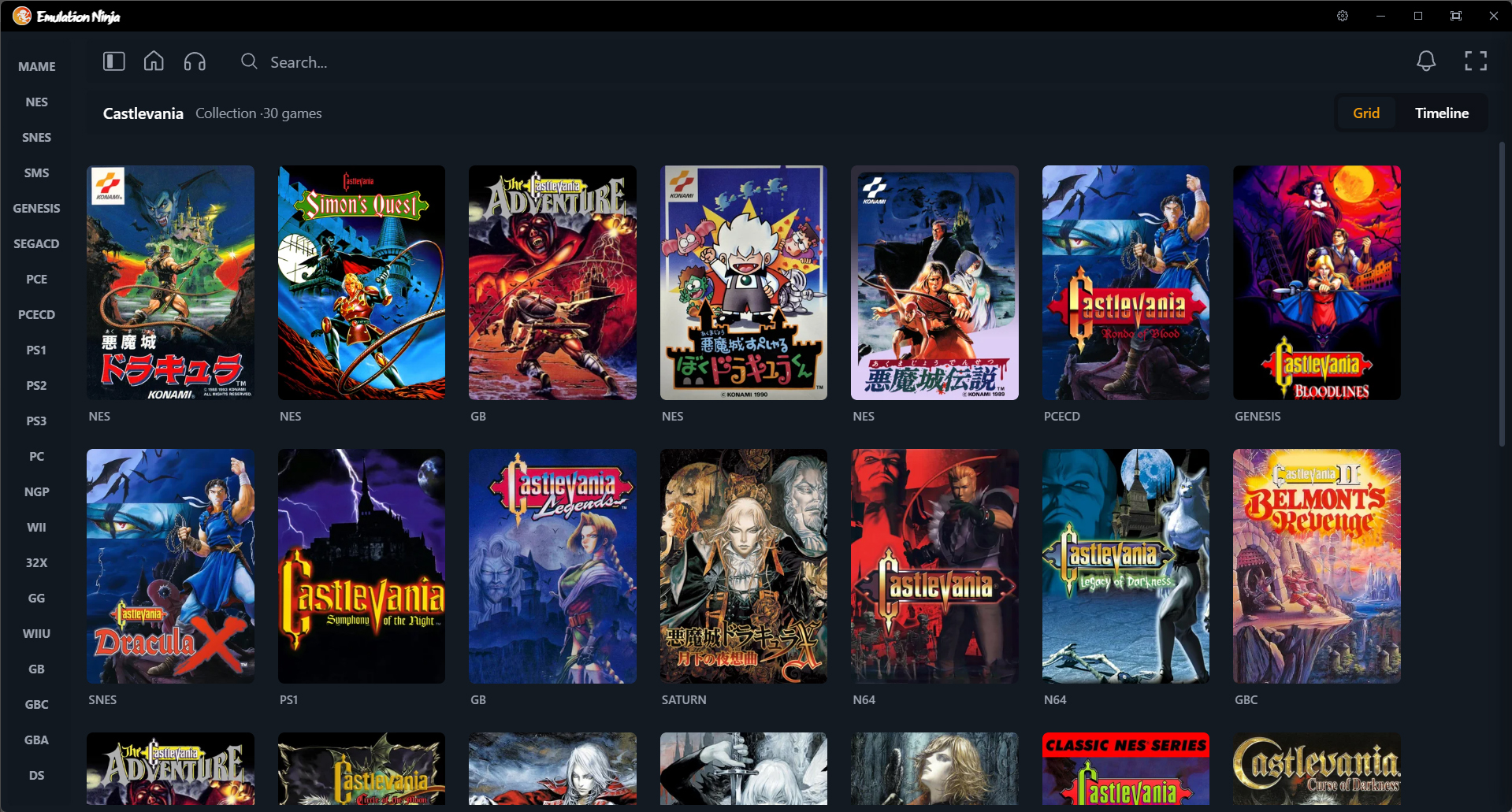
Game folders are managed with the same approach. You can add folders per system, review supported extensions, and even bring Steam content into the same library flow where it makes sense.

One interface for the messy parts

Installing emulators, checking BIOS files, selecting existing installs, managing RetroArch cores, setting primary defaults, and editing complex config files are usually all separate chores. Emulation Ninja pulls them into one clean interface so setup takes less time and staying organized takes less effort.

Welcome to Emulation Ninja Updates

Welcome to our updates page! Here we'll share news, features, and improvements for Emulation Ninja.

What to Expect

We'll post about:

  • New features – Big Picture Mode, AI recommendations, and more
  • System support – New emulators and platforms
  • Bug fixes – Improvements and stability

Inline Images

In Next.js, files in public/ are served from the site root. Never include public in the path — use paths as they appear in the browser.

Example: public/images/ai-assets.png/images/ai-assets.png